
YouTube SEO Score Checker
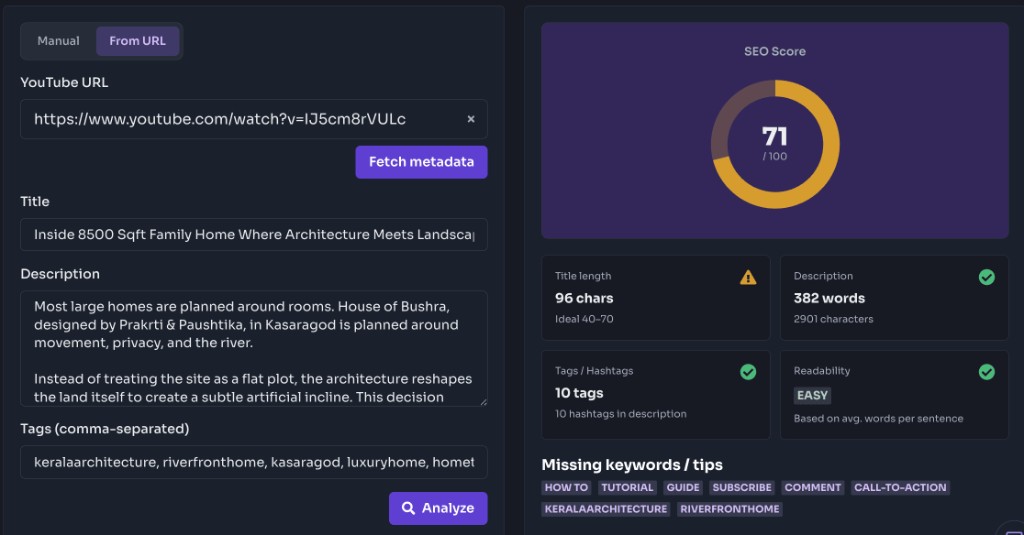
Check your YouTube SEO score from a title, description, and tags—or pull metadata from a video URL. Get length guidance, hashtag counts, readability, and missing keyword tips.
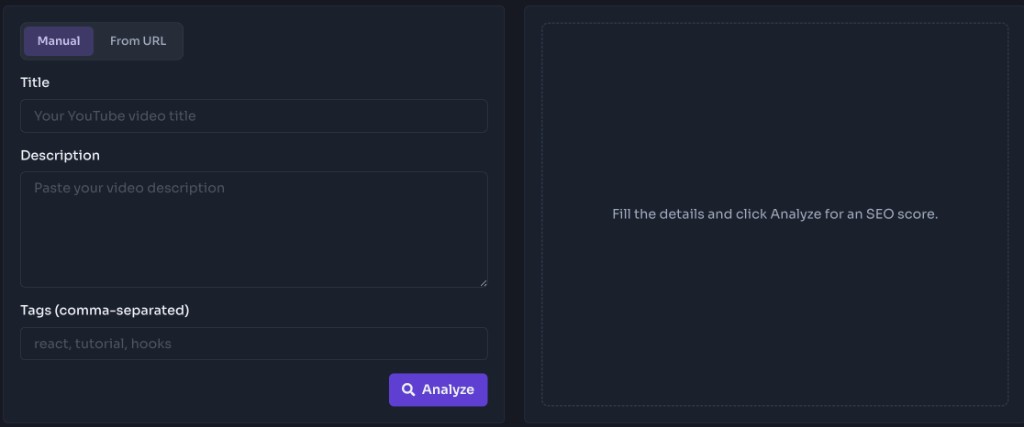
Fill the details and click Analyze for an SEO score.
What is a YouTube SEO Score Checker?
A YouTube SEO Score Checker scores your title, description, and tags against common packaging best practices—length, keyword coverage, hashtags, and readability—so you can improve clickability and search clarity before publishing.
Benefits
• 0–100 SEO score with clear breakdowns
• Manual entry or fetch from a video URL
• Title length and tag count guidance
• Hashtag and readability signals
• Missing keyword and CTA tips
When to use a YouTube SEO Score Checker?
Optimize titles before upload
Score title length, keyword placement, and clarity before you publish so the packaging is search- and click-ready.
Refresh older underperforming videos
Re-audit title, description, and tags on older uploads that need a packaging refresh without re-editing the video.
Check tag and hashtag coverage
See whether you have enough focused tags and 3–5 relevant hashtags instead of sparse or spammy packaging.
Compare packaging drafts side by side
Analyze alternate titles and descriptions to pick the stronger SEO and readability combination.
Quick audits after writing a description
Run a fast score check once the description is drafted to catch missing keywords, CTAs, or weak readability.
How to Use YouTube SEO Score Checker?
Choose Mode
Enter title, description, and tags manually—or paste a YouTube URL to fetch metadata.
Analyze
Click Analyze to compute the SEO score and packaging signals.
Improve
Use the tips for title length, missing keywords, hashtags, and readability.
YouTube SEO Best Practices (2026)
1. Put your primary keyword near the beginning of the title
Lead with the search phrase viewers are most likely to type. Front-loading the keyword helps YouTube and people understand the topic immediately in search results, suggested videos, and shared links.
2. Write descriptive video titles under 70 characters
Keep titles clear and scannable so they do not get cut off on mobile or in search. Aim for a specific promise (what the video delivers) rather than vague clickbait that hurts retention.
3. Include the target keyword naturally in the first 150 characters of the description
The opening lines of the description appear in search and above the fold. Summarize the video and weave in your primary keyword early, then expand with context, links, and CTAs below.
4. Add 3–5 relevant hashtags
Use a small set of accurate hashtags that match the topic. Three to five relevant tags support discovery without looking spammy; avoid stuffing unrelated trending hashtags.
5. Use chapters with timestamps
Add description chapters that start at 0:00 so viewers can jump to sections. Chapters improve usability, can unlock the chapters UI, and often help longer videos retain attention.
6. Upload custom thumbnails
Design a high-contrast 1280×720 thumbnail with a clear subject and readable text. Strong thumbnails improve click-through rate, which influences how often YouTube recommends your video.
7. Add captions or transcripts
Upload accurate captions or generate a transcript so the spoken content is searchable and accessible. Better captions help comprehension, SEO signals, and viewers watching without sound.
8. Encourage engagement through comments, likes, and subscriptions
Ask viewers to comment, like, and subscribe with a natural CTA in the video and description. Engagement and session signals help YouTube understand that the video is useful.
9. Organize videos into playlists
Group related uploads into playlists so viewers can binge similar content. Playlists increase session time and make it easier for new viewers to discover more of your channel.
10. Optimize filenames before uploading
Name the video file with a clean, keyword-aware filename before upload (for example react-hooks-tutorial.mp4). Clear filenames can support early metadata context alongside your title and description.
Frequently Asked Questions - FAQs
What is a good YouTube SEO score?
A score of 75+ usually means your packaging is strong on length, keywords, tags, and readability. Mid-range scores (50–74) show solid basics with clear room to improve. Lower scores flag missing keywords, short descriptions, weak titles, or sparse tags. The score is a packaging heuristic—not a guarantee of rankings.
Does YouTube use tags for ranking?
Tags are a lighter ranking signal than title, thumbnail, and watch time, but they still help with relevance and misspellings. Use a focused set of accurate tags rather than stuffing unrelated keywords.
How important is the video description?
Very important for context. Put your primary keyword early (ideally in the first ~150 characters), write a clear summary, add timestamps/chapters, links, and a call to action. Longer, useful descriptions tend to perform better than a one-line blurb.
How many hashtags should I use?
Aim for about 3–5 relevant hashtags in the description or title area. Too many hashtags can look spammy; a small, accurate set supports discovery without clutter.
Should my title include the exact keyword?
Yes when it reads naturally. Place the primary keyword near the beginning of the title, keep the title under ~70 characters, and prioritize clarity for humans—not awkward keyword stuffing.
Does thumbnail quality affect SEO?
Thumbnails mainly drive click-through rate, which influences how YouTube recommends your video. A clear, high-contrast custom thumbnail often improves CTR and thus discovery, even though the image itself is not a classic “keyword” SEO factor.
Can this tool analyze an existing YouTube video?
Yes. Switch to From URL, paste a public YouTube watch, Shorts, or youtu.be link, fetch metadata, then click Analyze to score the title, description, and hashtags found on the video page.
Does a high score guarantee rankings?
No. Scores reflect packaging heuristics. Rankings also depend on watch time, relevance, competition, and the video itself.
Do I need a YouTube account?
No. These utility tools work without a YouTube login. Channel stats and metadata use public page data only.
Is this free to use?
Yes. FrontendGeek YouTube utility tools are free to use in your browser.
