
Troubleshooting
Why Sometimes YouTube Downloads Have No Audio [Troubleshooting]
Updated Jul 26, 2026
A silent MP4 is frustrating but usually explainable. YouTube often stores video and audio as separate streams. If Instant Download grabs a video-only track — or your player mutes the track — you get picture without sound. Use this guide to diagnose and fix it.
![Why Sometimes YouTube Downloads Have No Audio [Troubleshooting] — Audio mixing console used when diagnosing YouTube downloads with no sound](/_next/image?url=https%3A%2F%2Fimages.unsplash.com%2Fphoto-1598488035139-bdbb2231ce04%3Fauto%3Dformat%26fit%3Dcrop%26w%3D1600%26q%3D80&w=3840&q=75 "Why Sometimes YouTube Downloads Have No Audio [Troubleshooting] — Fix YouTube downloads with no audio")
Free YouTube Download Tools
Common causes
- Video-only stream selected (some high resolutions are video-only until muxed with audio)
- Incomplete download that truncated the audio track
- Player issue — system mute, Bluetooth device, or codec the player cannot decode
- Rare source quirks on live VODs, premieres, or partially processed uploads
Fix 1: re-download a quality that includes audio
Return to YouTube to MP4 Converter or YouTube Video Downloader, load the same URL, and pick a mid-high quality such as 720p that typically includes sound. For Shorts, use YouTube Shorts Downloader and download again. Avoid canceling mid-transfer.
Fix 2: grab audio separately with YouTube to MP3
If you urgently need the soundtrack, open YouTube to MP3 Converter with the same link and Instant Download the MP3. You can keep the silent video for visuals and the MP3 for listening, or merge them later in an editor.
Fix 3: rule out playback problems
- Try VLC or another player — some gallery apps mishandle certain AAC layouts
- Toggle mute / check volume mixer on Windows
- Unplug headphones and test speakers (Bluetooth handoff bugs are common)
- Inspect file size — a tiny file for a long video often means an incomplete Instant Download
Prevention tips
- Prefer listed MP4 options that mention audio or standard progressive qualities
- Stay on a stable connection until the download completes
- For music-focused saves, start with YouTube to MP3 Converter instead of stripping video later
- For Shorts, confirm the Shorts Downloader preview has sound before you save
Still silent after a fresh download?
Test another public video. If other downloads have audio, the original upload may have a muted track or restricted audio. If every file is silent, update your player or try a different device. Rotate between YouTube to MP4, Video Downloader, Shorts Downloader, and YouTube to MP3 until you get a complete Instant Download.
Explore More Guides
YouTube MP4 Download Not Working [Troubleshooting]
 How to Convert Youtube to MP4 for Free
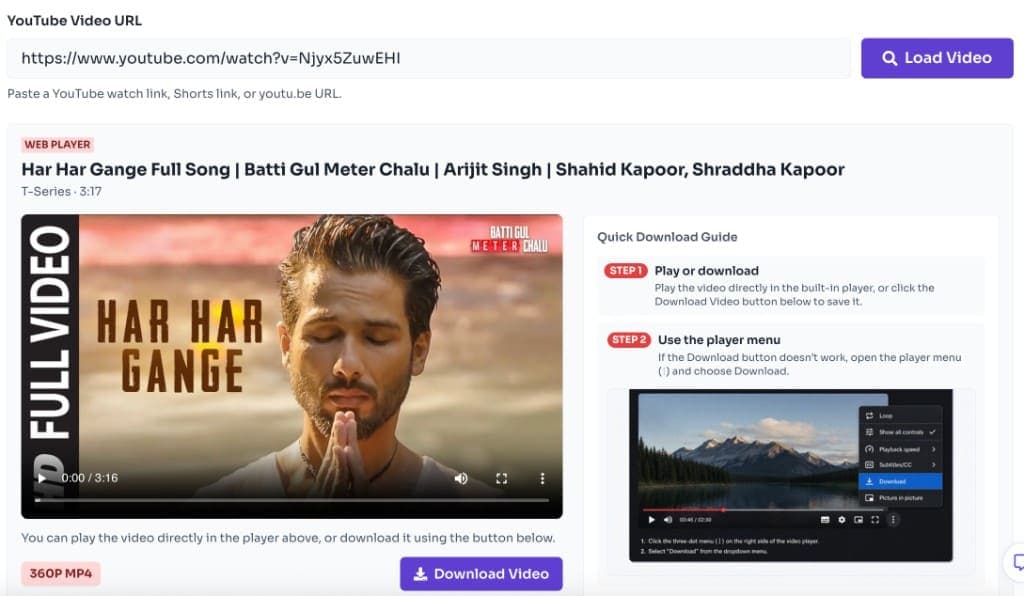 How to Extract Audio from YouTube Video — YouTube to MP3
 How to Download YouTube Music and Songs for Free — High Quality MP4
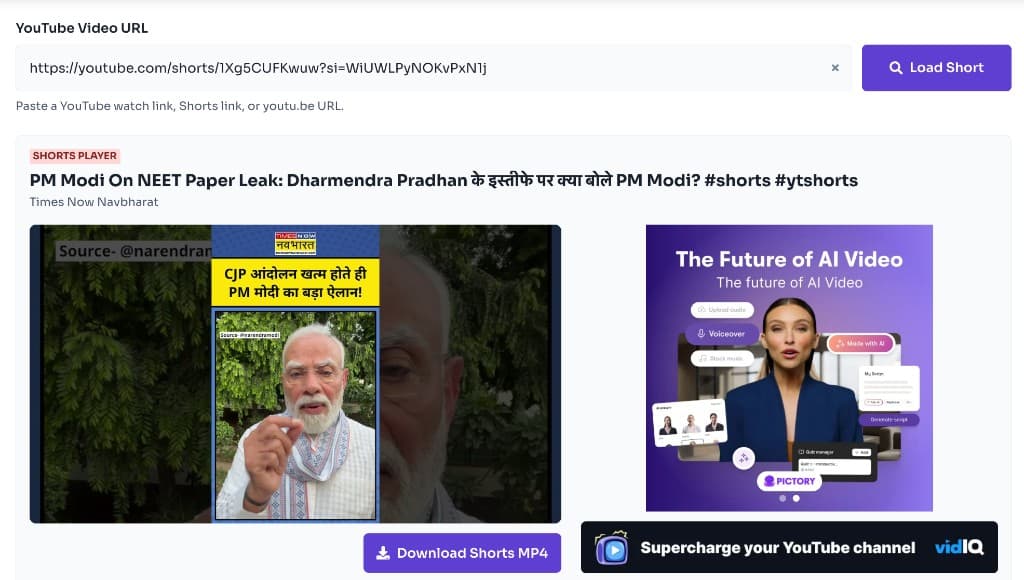 How to Download YouTube Shorts for Free — Instant HD MP4 Download
MP4 vs WebM — Understand the Difference
MP4 vs MOV — Understand the Difference
 How to Download YouTube Videos for Free: Step-by-Step Guide (2026)
Or browse the full Tools How to Guide.
Found this guide useful?
Share it with someone learning YouTube downloads